You have hours of raw footage sitting on your phone or camera, and you want to turn it into something people actually want to watch. The problem is that searching for video editing tools usually leads straight to complex, Hollywood-grade software with steep subscription fees and hundreds of confusing panels. You do not need an overwhelming editing suite to make polished, engaging videos; you just need an editor that gets out of your way so you can learn the basics quickly.
Start with Free Tools
Before spending a single dollar on software, take advantage of the capable free tools already on your device. The fundamentals of video editing—slicing clips, arranging a timeline, adjusting volume levels, and adding basic transitions—work essentially the same way across every editing platform. Starting with free software lets you build these core instincts without any financial risk.
Depending on your operating system and the type of content you want to make, three free options stand out above the rest:
- Apple iMovie (macOS/iOS): The gold standard for clean, ad-free beginner editing on Mac. iMovie features a magnetic timeline that keeps your clips organized automatically, preventing accidental gaps in your project. It includes solid color adjustment tools, basic green-screen capability, and clean audio handling without adding watermarks to your exports.
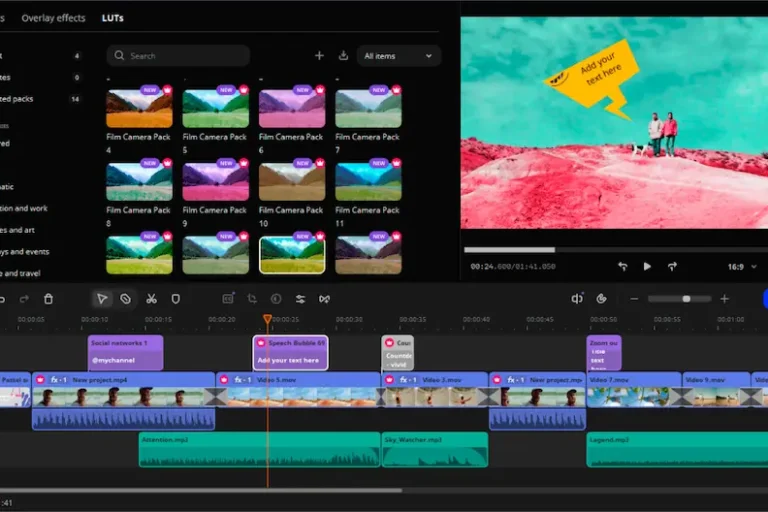
- Microsoft Clipchamp (Windows): Pre-installed on Windows 11 and accessible via web browser, Clipchamp provides a straightforward multitrack timeline. It comes packed with customizable templates, text-to-speech generators, screen recording tools, and direct export profiles for social media platforms.
- CapCut (Desktop and Mobile): Originally built for mobile creators, CapCut’s desktop application has become a powerhouse for short-form editing. It offers automated speech-to-text captions, trending transition effects, and intuitive speed ramping that save hours of manual editing.
While these tools handle most everyday projects with ease, you will eventually hit their technical limits. Upgrading makes sense when you start needing granular multi-track audio mastering, advanced keyframing to animate custom graphics, fine-tuned color grading curves, or support for specialized camera formats like 10-bit LOG video.
Step Up to Paid Editors for Faster Workflows
When you outgrow basic free software, you do not have to jump straight to expensive monthly subscriptions like Adobe Premiere Pro. Mid-tier beginner editors like Adobe Premiere Elements and Movavi Video Editor offer perpetual (one-time purchase) licenses or low-cost annual plans that give you deeper creative control without recurring financial pressure.
These intermediate programs bridge the gap between simple clip-stitching and complex timeline management with guided features built for learning:
- Interactive Tutorials and Guided Edits: Premiere Elements includes step-by-step walk-throughs directly inside the interface, showing you how to perform specific tasks like time-lapse creation, motion tracking, and double exposures.
- AI-Assisted Tools: Movavi features instant background removal, smart motion tracking, and one-click AI noise removal that cleans up windy or muffled microphone audio without requiring manual EQ tweaking.
- Flexible Workspace Modes: Many paid entry-level programs let you switch between “Quick” modes (simplified drag-and-drop interfaces) and “Expert” modes (multi-layer timelines with keyframing tools) as your confidence grows.
Beyond extra features, stepping up to dedicated paid software delivers significant improvements in performance stability. These programs utilize your computer’s graphics card more effectively, which means smoother real-time playback when applying effects, fewer crashes when handling large 4K files, and significantly faster export times.
Focus on Core Features
It is easy to get caught up in feature lists and assume you need industry-standard tools like DaVinci Resolve right away. However, opening a color-grading node tree or a digital audio workstation on day one usually leads to frustration and unfinished projects. The majority of great video editing comes down to mastering three fundamental elements: pacing, clear visual context, and clean audio.
When evaluating any beginner video editor, make sure it excels at these non-negotiable everyday tasks:
- Frictionless Trimming and Cutting: The editor should allow single-key shortcuts for splitting clips (such as pressing “B” or “C”) and support “ripple delete,” which instantly closes the gap left behind when you delete a clip from the middle of your timeline.
- Customizable Text and Titles: Look for built-in lower thirds, title cards, and callout graphics where you can easily change fonts, colors, and animations without building them from scratch.
- Essential Audio Management: Bad audio ruins good video faster than poor camera quality. Your editor needs clear audio meters, simple gain sliders, fade-in/fade-out handles, and an automatic audio ducking feature that lowers background music whenever a voiceover speaks.
Tip: Pick an editor with a built-in library of royalty-free stock music and sound effects. Sourcing tracks from third-party sites slows down your momentum and exposes your channel to copyright strikes.
The “best” editor depends entirely on what you intend to publish. A tool optimized for rapid-fire smartphone videos will feel clunky for an hour-long podcast, and vice versa. Clarify your project goals before choosing your platform:
For Vertical Short-Form Video (TikTok, Reels, Shorts)
If your primary output is vertical (9:16) content, pick CapCut. Its automatic caption generator is fast and remarkably accurate, allowing you to style dynamic text animations with one click. It also provides pre-set canvas aspect ratios, built-in stickers, and sound effect libraries tailored directly to current social media trends.
For Long-Form YouTube Content
If you produce talking-head videos, software tutorials, or product reviews, look to Movavi Video Editor or Clipchamp. Both support easy Picture-in-Picture (PiP) layering, integrated screen and webcam recording, and clear timeline markers that help you structure chapters and pacing across a 10-to-20-minute video.
For Personal, Travel, and Family Archives
If you want to assemble vacation footage, birthday montages, or wedding clips, Apple iMovie or Adobe Premiere Elements are ideal. They offer classic transition packs, automatic photo pan-and-zoom (Ken Burns effect) for slideshows, and simple color enhancement presets that make outdoor shots pop without manual grading.
Test System Compatibility and Export Presets Before Committing
Video editing is one of the most resource-intensive tasks you can run on a computer. Before buying any software, verify that your machine meets or exceeds the developer’s recommended specifications:
- Memory (RAM): 8GB of RAM is the bare minimum for smooth 1080p editing, but 16GB is strongly recommended if you plan to edit 4K footage from a modern smartphone or mirrorless camera.
- Storage: Always install your editing software and project cache on a fast Solid State Drive (SSD). Traditional spinning hard drives cause sluggish timeline scrubbing and dropped frames during playback.
- Processor and Graphics: Modern quad-core processors (such as Intel Core i5/i7, AMD Ryzen 5/7, or Apple Silicon M-series chips) ensure that transitions and text overlays render smoothly in real time.
Exporting should also be straightforward. Choose software that provides pre-configured export profiles for common destinations—such as “YouTube 4K,” “Vimeo 1080p,” or “Instagram Story.” These presets configure the correct video codec (usually H.264 or HEVC/H.265), bitrates, and audio sample rates automatically, preventing blurry uploads or massive file sizes.
The availability of high-speed internet and the growth of online video sharing platforms offer hours of the free video viewing experience. YouTube, Vimeo, and other video sharing platforms provide a free venue to content creators and artists to showcase their talents. This allows them to turn their passion into a business. It gives the opportunity to earn money through videos. Through videos, you can easily share information with your audience in a short time. Video editing is not an easy task for many, video editing requires some basic experience to create and edit videos. The old complex tools and advanced interface requires some training to edit videos. But the new user-friendly tools make visual storytelling as easy as writing a blog post. You can easily dragon drop photos and videos on the timeline to create a video sequence. You can add music in the format of your choice. Here are some beginner-friendly video editing tools that make anyone create stunning videos without any training.
Movavi video editor
(Get Movavi video editor)
Movavi video editor is designed for anyone who wants to create videos themselves. It takes a few minutes to master the tools offered by the video editor and you can edit videos like a pro. You can add filters, transitions, titles, color effects, and intros into your videos. Mavavi effect store offers ready-made transitions, titles, and stickers for content creators. I used this video editor to edit my videos and I can tell you, this is the simplest easy to use video editor with all the essential tools to create pro-level videos. One of the best features that I really loved is the chroma key feature, I can easily replace the green screen in videos. If you need a video editor, video converter, and screen recorder for your work, then the Movavi video suite is an all-in-one tool you can consider for.
Adobe Premiere Rush
(https://www.adobe.com/products/premiere-rush.html)
Adobe Premiere Rush is a create-on-the-go type all-in-one video editing app from Adobe. You can easily edit and share videos on social media using Rush. You can add and edit titles using built-in templates, import and adjust audio, add voice-overs, and can enhance videos with presets and color correction. Rush allows you to export videos directly to any social channel in the right aspect ratio. From this, you may notice that Adobe Rush is eyeing social media video content creators and newbie video editors.
Wondershare Filmora
(Get Wondershare Filmora)
Filmora video editor offers common video editing tools like transitions, filters, titles, and motion elements. It allows split-screen video, color grading, and audio ducking. Filmora X and Filmora Pro versions available, Filmora X intended for beginner and intermediate video editors whereas Filmora Pro for intermediate to professional video editors.
Magix Video Pro X
(Get Magix movie edit)
Magix video pro X designed for professional video production accessible for everyone offers. It offers video cutting tools, extensive optimization options in their video editing platform. It allows multi-camera editing, in multi-cam code, you can choose which recording should display. This tool also offers image stabilization and detailed color correction. You can add titles, transitions, slow motion, camera pans, intros, outros, travel route animation, music, and sound effect to your videos. Magix also offers a low-cost tool, movie edit pro for simple video editing.
Corel video studio
(Get Corel video studio)
Corel video studio offers various creative effects, elegant titles, ability to show multiple videos simultaneously. You can start with templates, edit on the timeline, and combine photos, videos, and audio on multiple tracks. This tool offers more than 1,500 filters and effects and allows multi-camera editing.
Cyberlink Power director
(Get Power Director)
The power director comes with professional video editing tools in an easy to use interface. It has a stock library, ready-to-use motion graphic titles, animated sketch templates, title animation, green screen editing, and frame-by-frame motion tracking. The power director is a prosumer video editor with a 4k preview option, so you can preview your work in 4k quality.
Kinemaster
(https://www.kinemaster.com/)
Kinemaster is a powerful video editor for your phone, tablet, or Chromebook. KineMaster and all of its editing tools are free to use, but advanced features are only available in KineMaster Premium. You can add and combine multiple layers of video, images, stickers, special effects, text, and handwriting.
Freeware video editors
Most of our readers have a limited amount of income to spend on the things they need and want. If your budget is limited, this freeware video editors will help you to edit video for free.
Openshot Video Editor
(https://www.openshot.org/)
OpenShot Video Editor is easy to use, quick to learn, free, and powerful video editor. Using its powerful animation framework, you can fade, slide, bounce, and animate anything in your video project.
Wevideo
(https://www.wevideo.com/)
Wevideos is an online video editor, edit videos with zero upload wait time. Wevideo also offers stock media, including videos, images, and music tracks. You can make videos on any device, like Chromebook, Windows, Mac, and mobile.
A nowise don’t need an expensive professional-level video editing program like Adobe Premiere which requires in-depth training. An entry-level video editing application can turn your captured videos into impressive productions. Which movie editor you are using to edit your videos? The experiences you have gone through can always help someone else in need, sharing your video editing experiences.